MySQL Database on Windows RDP Server: The Complete Beginner’s Guide
Managing a MySQL database becomes much easier when you know how to access it correctly through a Windows Remote Desktop Protocol (RDP) server. Whether you are managing a website, application, or hosting environment, an RDP server gives you remote access to the Windows system where your MySQL database may be installed.
If you are new to database management, terms such as MySQL, RDP, ports, localhost, command line, and remote connections can seem complicated. However, the basic process is straightforward once you understand how these components work together.
In this guide, you will learn how to access a MySQL database on a Windows RDP server, check whether MySQL is running, connect using the MySQL command line or MySQL Workbench, view databases and tables, troubleshoot common connection problems, and secure your database properly.
The instructions are designed for beginners, website owners, developers, hosting users, and anyone who needs to manage a MySQL database on a remote Windows server.
What Is MySQL?
MySQL is a popular relational database management system used to store and organize information. A relational database stores information in tables made up of rows and columns.
For example, a website might use a MySQL database to store:
- User accounts
- Website settings
- Blog posts
- Customer information
- Product details
- Orders
- Application data
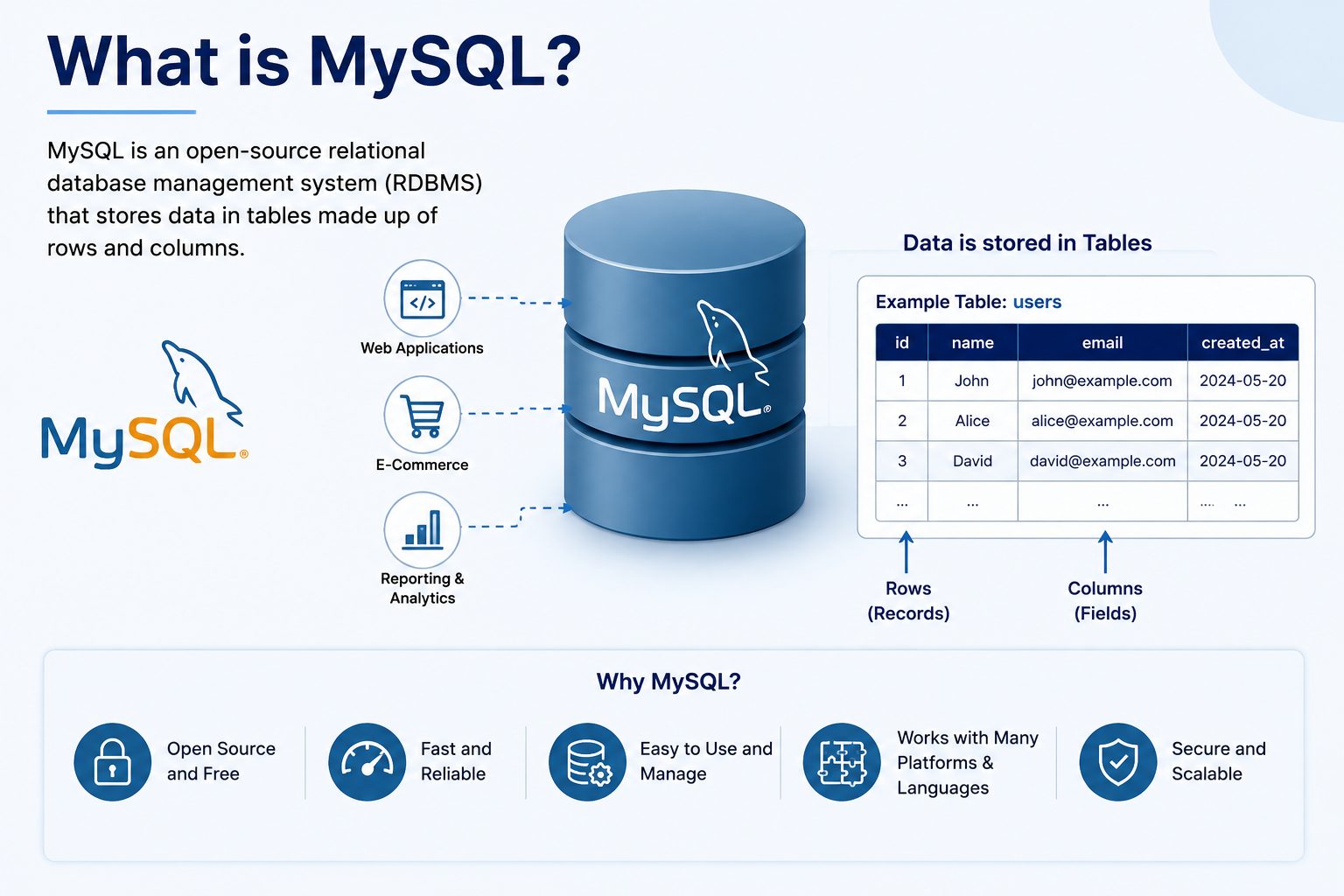
MySQL stores and organizes structured data in tables made up of rows and columns.
MySQL is widely used because it can efficiently handle structured data and works with many programming languages and web applications.
WordPress, for example, uses a database to store important website information such as posts, pages, users, settings, comments, and plugin-related data.
A MySQL server runs as a service on the computer. Applications or database management tools connect to that service to read, update, or manage stored information.
When MySQL is installed on a Windows server, you can manage it directly from that server if you have appropriate access.
What Is a Windows RDP Server?
Remote Desktop Protocol, commonly called RDP, is a technology that allows you to remotely connect to and control a Windows computer or server.
Instead of sitting in front of the physical server, you can use an RDP client from another computer to access its Windows desktop.
Once connected through RDP, you can usually perform tasks such as:
- Open Windows applications
- Manage files and folders
- Install software
- Check Windows services
- Run Command Prompt
- Manage databases
- Configure server settings
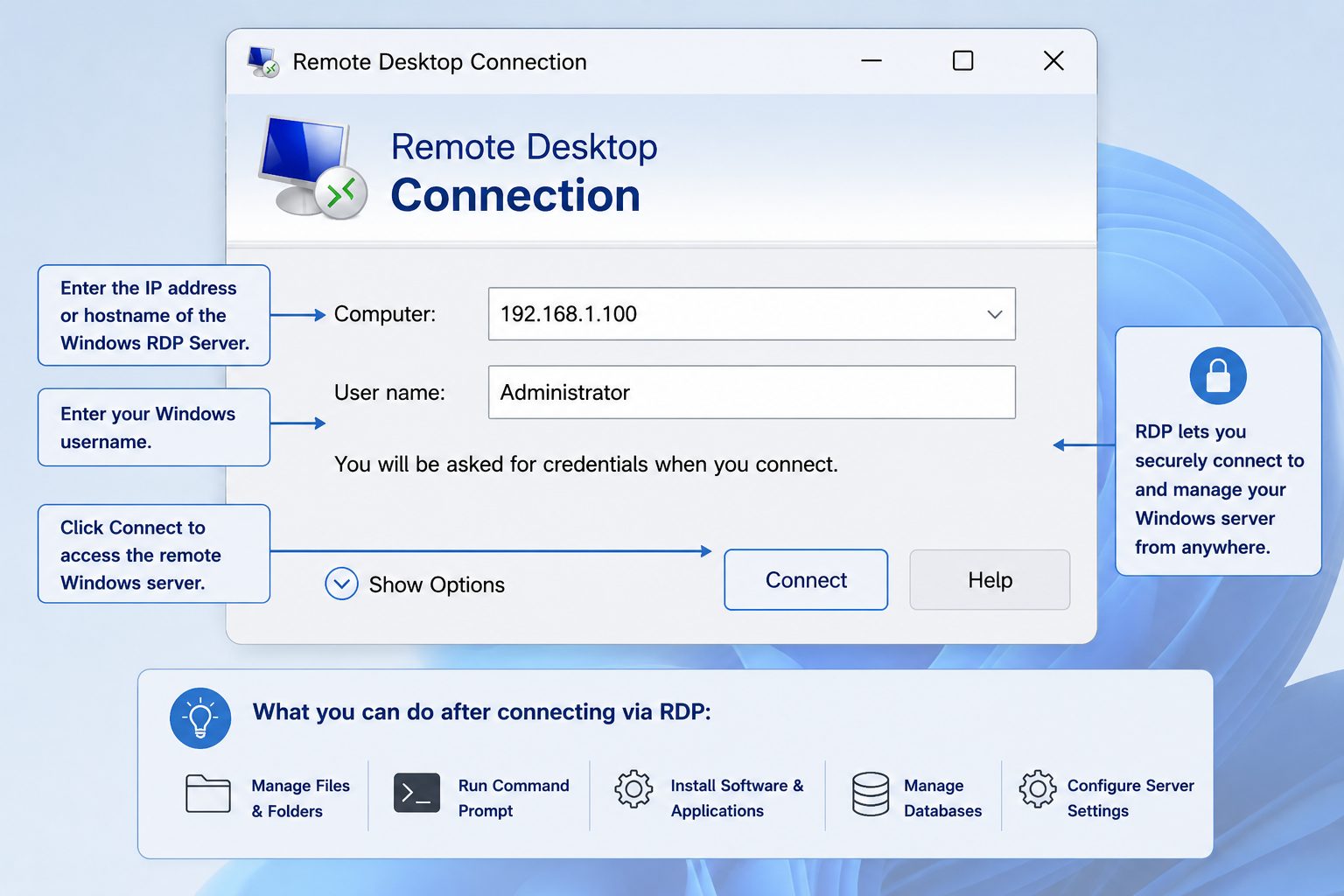
It is important to understand the difference between RDP and MySQL.
RDP provides remote access to the Windows server. MySQL is the database service running on that server.
Therefore, connecting to a Windows RDP server does not automatically mean you have connected to MySQL. First, you access the Windows server through RDP. Then you use a MySQL client, command-line tool, or management application to connect to the database.
Why Access MySQL Through a Windows RDP Server?
There are several practical situations where accessing MySQL through an RDP server is useful.
For example, a website may be hosted on a remote Windows server, and its MySQL database may also be installed on that machine. Instead of trying to connect to MySQL directly from your local computer, you can connect to the server through RDP and manage MySQL from inside the Windows environment.
Common reasons include:
- Managing a remotely hosted website
- Accessing databases installed on a Windows server
- Running database administration tools
- Managing application data
- Performing database backups
- Troubleshooting database problems
- Checking MySQL services
- Running SQL queries
- Managing databases without physical access to the server
This approach can also be convenient when MySQL is configured to accept connections only from the local server.
What You Need Before Accessing MySQL
Before you begin, make sure you have the following information and access:
Windows RDP Server
You need access to the Windows server where MySQL is installed or where you want to manage the database.
RDP Login Credentials
You need a valid Windows username and password, along with the server’s IP address or hostname.
MySQL Server
MySQL must be installed and running on the Windows server if you want to connect to a database hosted there.
MySQL Username and Password
You need a MySQL account with sufficient permissions to access the required database.
MySQL Server Address
If MySQL is running on the same Windows server, the address may commonly be localhost or 127.0.0.1.
MySQL Port
The default MySQL port is 3306. However, administrators can configure MySQL to use a different port.
Appropriate Permissions
Your MySQL account must have the permissions required for the tasks you want to perform.
MySQL Client or Management Tool
You can use the MySQL command-line client or a graphical tool such as MySQL Workbench.
Once these requirements are available, you can begin the connection process.
How to Connect to a Windows RDP Server
Before accessing the MySQL database, you first need to connect to the Windows RDP server.
Step 1: Open Remote Desktop Connection
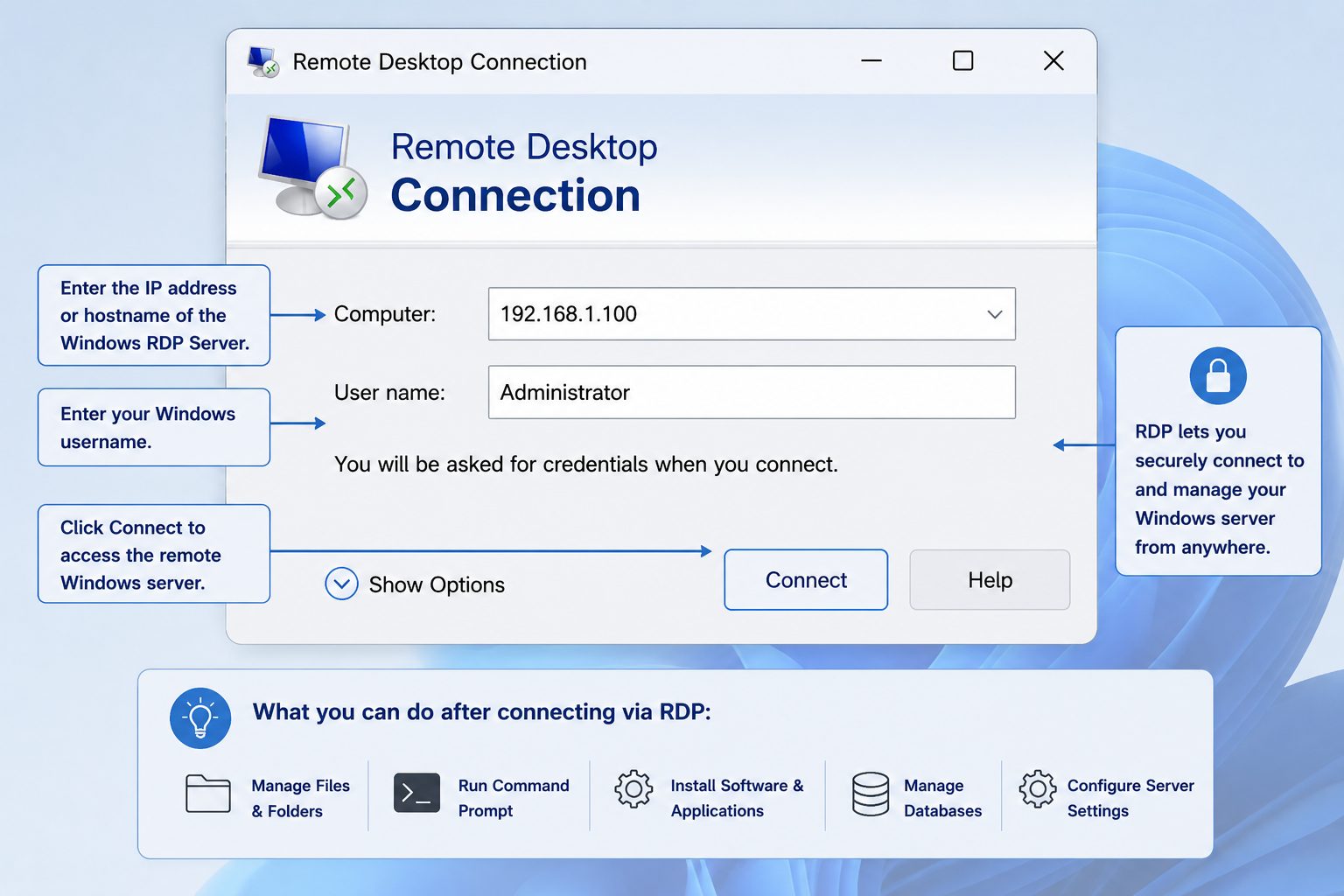
On a Windows computer, open the Remote Desktop Connection application.
You can search for Remote Desktop Connection from the Windows Start menu.
The application provides a field where you can enter the address of the remote Windows computer.
Step 2: Enter the Server Address
Enter the IP address or hostname of your Windows RDP server.
For example:
SERVER_IP_ADDRESS

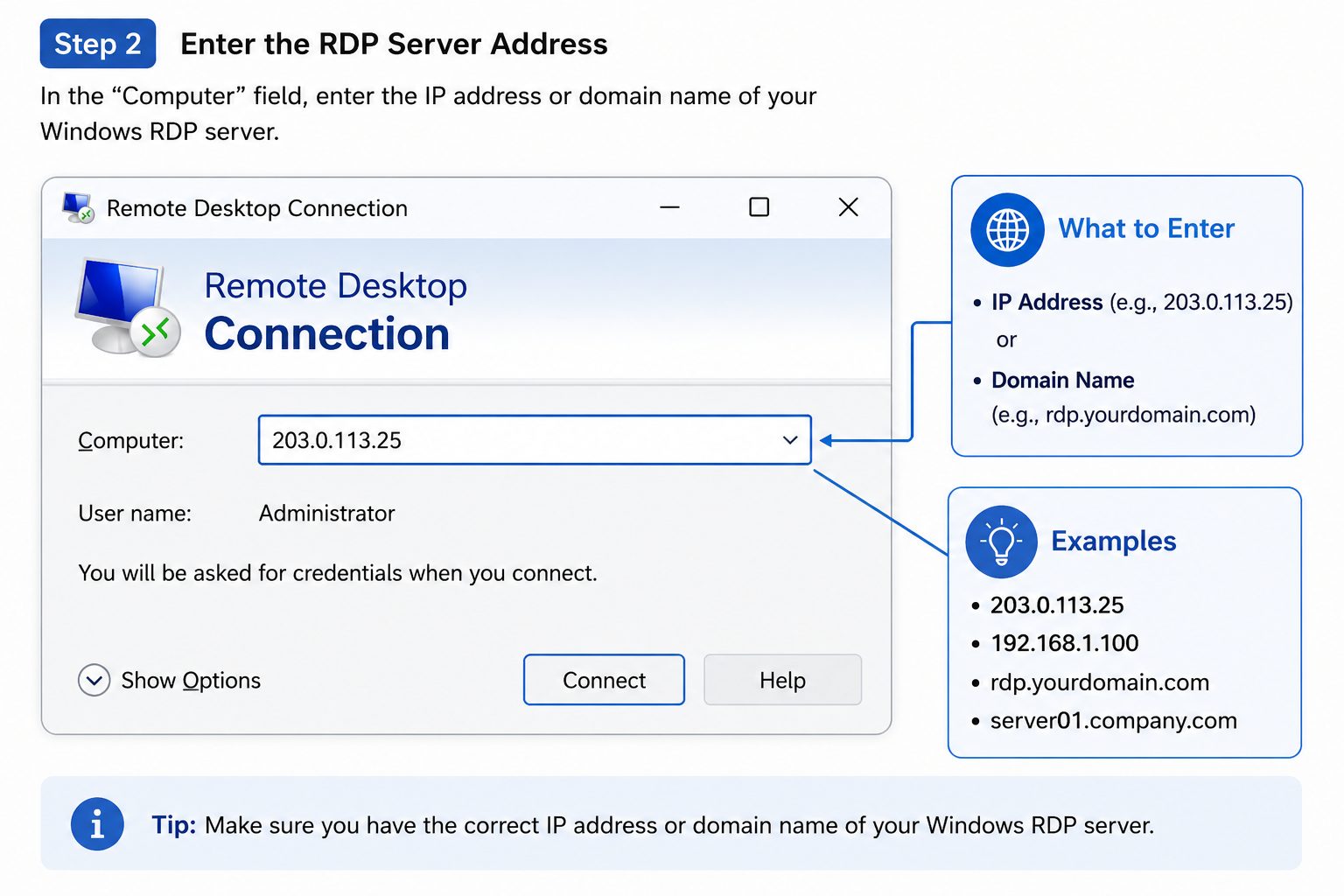
Do not use an example address as your actual server address. Enter the address provided by your hosting provider or server administrator.
Step 3: Enter Your Credentials
Click the option to connect and enter your Windows username and password when prompted.
Always keep your RDP credentials private. Do not share your password through unsecured messages or store it in plain text.
Step 4: Access the Windows Server Desktop
After successful authentication, the remote Windows desktop should appear.
The exact desktop, applications, and permissions available to you depend on how the server has been configured.
Once you are inside the server, you can check whether MySQL is installed and running.
How to Check Whether MySQL Is Running
If your MySQL connection is not working, one of the first things you should check is whether the MySQL service is running.
There are several ways to do this on Windows.
Method 1: Check MySQL Through Windows Services
Windows Services provides a simple graphical way to check background services.
Follow these steps:
- Open the Windows Start menu.
- Search for Services.
- Open the Services application.
- Look through the list for a MySQL-related service.
- Check its status.
- If the service is stopped and you are authorized to manage it, you may start or restart it.
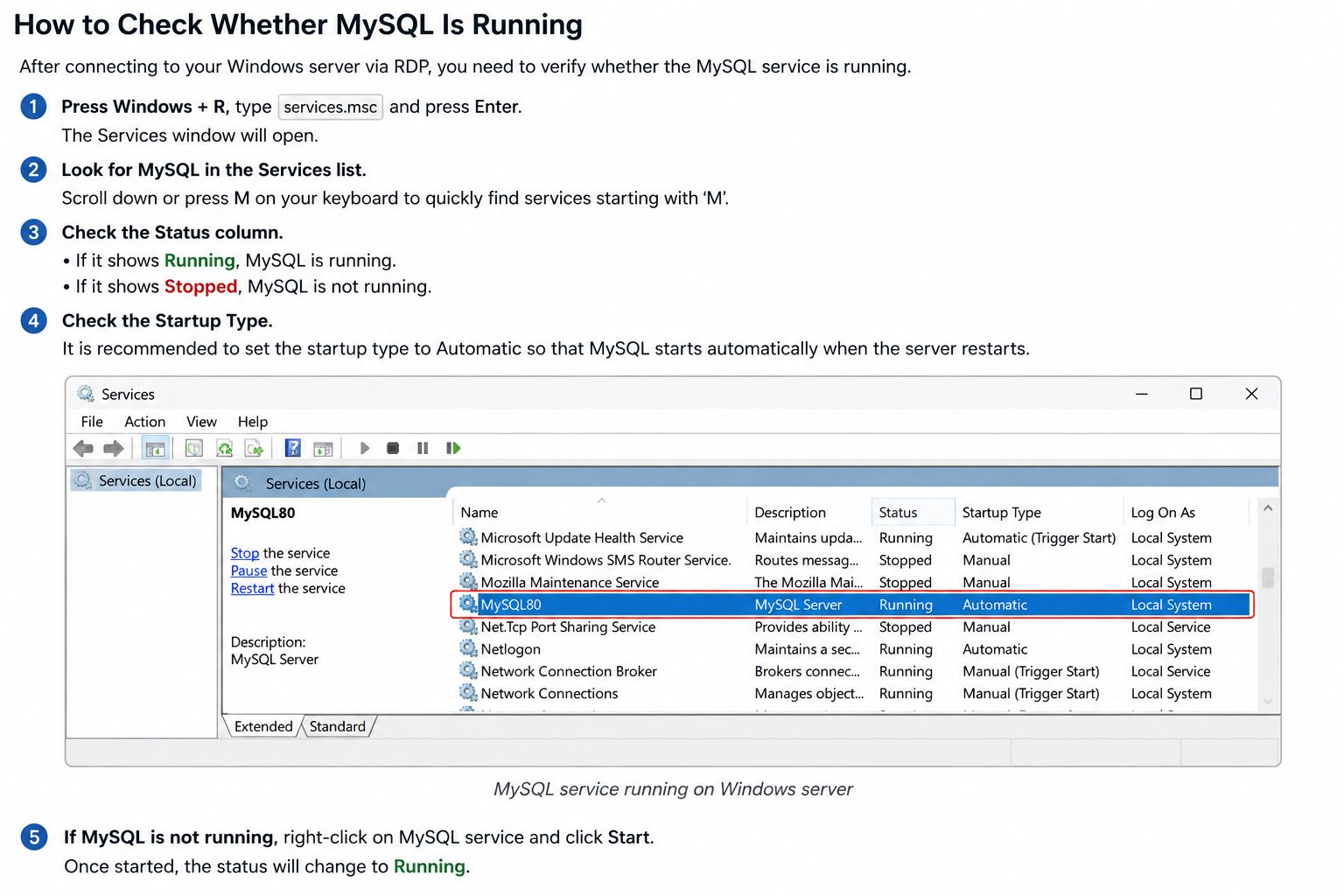
The exact service name can vary depending on the MySQL version and installation.
Do not restart a production database service without understanding the possible effect on websites or applications currently using it.
Method 2: Check MySQL Using Command Prompt
You can also use Command Prompt to check Windows services.
For example:
sc query MySQL
This command asks Windows for the status of a service named MySQL.
The actual service name on your server may be different, so you should use the correct MySQL service name configured on the system.
How to Access MySQL Using the MySQL Command Line
The MySQL command-line client is one of the simplest ways to connect to a MySQL database when you are already logged into the Windows RDP server.
Step 1: Open Command Prompt
Inside the Windows RDP session, open Command Prompt.
You can search for Command Prompt from the Windows Start menu.
Step 2: Check Whether the MySQL Command Is Available
Try running:
mysql --version
If MySQL is installed and its command-line tools are available through the system PATH, Windows should display the installed MySQL version.
If Windows says that mysql is not recognized, the MySQL installation directory may not be included in the PATH.
In that situation, you may need to navigate to the MySQL bin directory or configure the PATH appropriately.
Step 3: Connect to MySQL
A basic connection command is:
mysql -u username -p
Here:
mysqlstarts the MySQL command-line client.-uspecifies the MySQL username.usernamerepresents your actual MySQL username.-ptells MySQL to ask for the password.
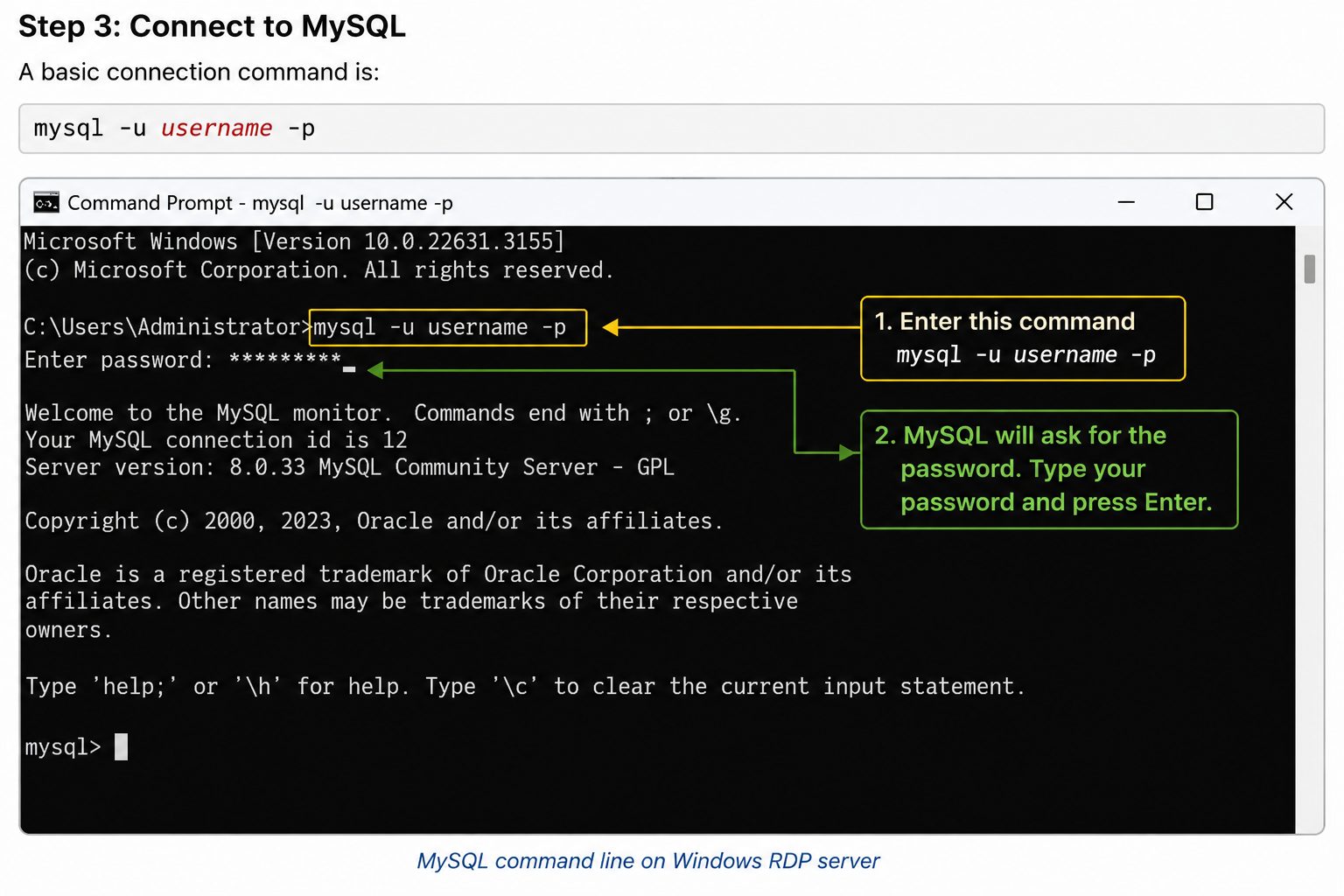
After entering the command, MySQL should prompt you for the password.
Never put an actual password directly into an article, script, screenshot, or command that could expose your credentials.
Step 4: View Available Databases
After successfully connecting, run:
SHOW DATABASES;
This command displays databases that your MySQL account is permitted to see.
Step 5: Select a Database
To work with a particular database, use:
USE database_name;
Replace database_name with the actual database name.
Step 6: View Tables
After selecting the database, run:
SHOW TABLES;
This displays the tables available within the selected database.
You can then inspect individual tables using appropriate SQL queries.
How to Access MySQL Using MySQL Workbench
If you prefer a graphical interface instead of Command Prompt, MySQL Workbench can be a convenient option.
MySQL Workbench is a graphical database management tool designed for working with MySQL databases.
It can make database administration easier for beginners because databases, tables, queries, and other objects can be viewed through a graphical interface.
Install or Open MySQL Workbench
If MySQL Workbench is already installed on your Windows RDP server, open it from the Start menu.
If it is not installed, make sure you obtain the software from an appropriate official or trusted source and follow your organization’s software installation policies.
Create a New MySQL Connection
When creating a connection, you will generally need:
- Connection name
- Hostname
- Port
- Username
- Password
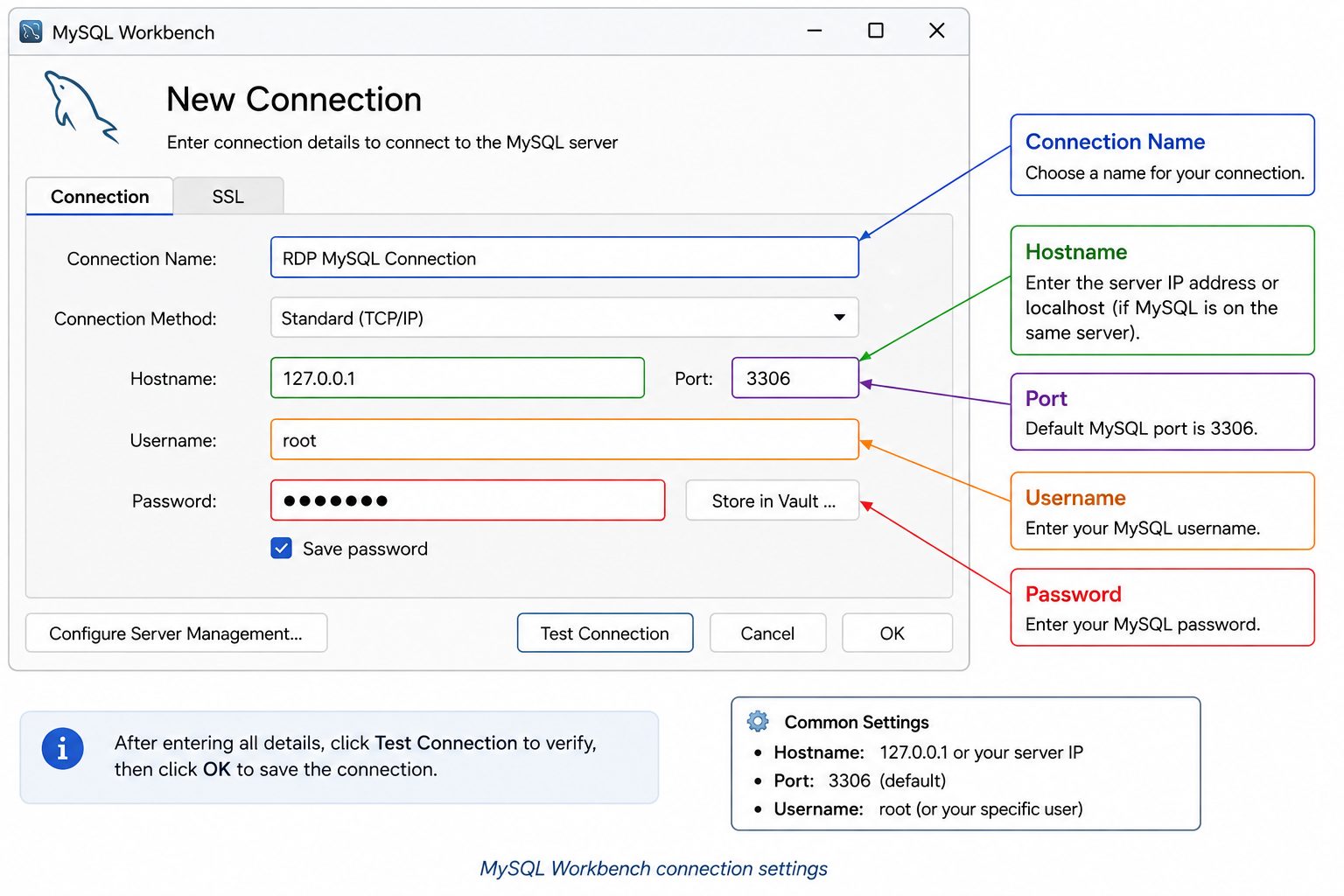
If MySQL is running on the same RDP server, the hostname may commonly be:
localhost
or:
127.0.0.1
The port is commonly:
3306
unless your server administrator has configured a different port.
Test the Connection
Use the connection test option provided by Workbench.
If the test succeeds, the client can communicate with the MySQL server using the supplied connection details and credentials.
If the test fails, check the hostname, port, username, password, MySQL service status, firewall configuration, and user permissions.
Open and Manage the Database
After connecting successfully, you can use MySQL Workbench to:
- View databases
- View tables
- Run SQL queries
- Inspect data
- Create database objects
- Manage database structures
- Create backups
Always be careful when executing SQL statements that modify or delete data.
How to Access a MySQL Database Hosted on the RDP Server
There are two common situations to understand.
Scenario 1: MySQL and the Application Are on the Same Windows RDP Server
Suppose your website or application and MySQL are both running on the same Windows server.
In this situation, the application may connect to MySQL using:
localhost
or:
127.0.0.1
This means the connection is made to the local machine rather than another computer on the network.
For database management from inside the RDP session, connecting to the local MySQL service can often be simpler because you do not necessarily need to expose MySQL to the public internet.
Scenario 2: MySQL Is Accessed From Another Computer
You may also want to connect to the MySQL server from your personal computer without first logging into the RDP server.
This is a different setup.
Remote MySQL access may require:
- Correct MySQL user permissions
- Firewall configuration
- Appropriate bind-address configuration
- Network connectivity
- Correct MySQL port
- Proper authentication settings
Remote access should be configured carefully.
Avoid exposing MySQL directly to the public internet unless there is a specific requirement and appropriate security controls are in place.
Using a secure network path, VPN, SSH tunnel, or other controlled access method may be preferable depending on your environment.
How to Select and View a MySQL Database
Once you are connected to MySQL, you can use basic SQL commands to explore the database.
To list databases:
SHOW DATABASES;
To select a database:
USE database_name;
To view the tables inside the selected database:
SHOW TABLES;
These commands are useful for beginners because they allow you to understand the database structure before making changes.
For example, after selecting a WordPress database, you may see multiple tables containing different types of website information.
Do not modify or delete tables unless you understand their purpose and have a reliable backup.
How to View Data in a MySQL Table
The SELECT statement is commonly used to retrieve data from a MySQL table.
For example:
SELECT * FROM table_name;
Here:
SELECTtells MySQL that you want to retrieve data.*means all columns.FROMidentifies the table from which the data should be retrieved.table_namerepresents the name of the table.
If a table contains a large amount of data, requesting every row and every column may produce a very large result.
For a quick inspection, you can limit the number of returned rows:
SELECT * FROM table_name LIMIT 10;
This asks MySQL to return up to 10 rows.
Using LIMIT can be helpful when you are exploring an unfamiliar database and do not need to display the entire table.
Common MySQL Connection Problems on Windows RDP
Even when the basic process is correct, you may encounter connection errors.
Here are some common problems and possible causes.
1. MySQL Service Is Not Running
If the MySQL service has stopped, clients cannot connect to it.
Check Windows Services and verify that the appropriate MySQL service is running.
If it is stopped, an authorized administrator can start it.
2. Incorrect Username or Password
An incorrect MySQL username or password can result in an authentication error.
Verify the credentials carefully.
Remember that Windows RDP credentials and MySQL credentials are separate unless your environment has been specifically configured otherwise.
3. Wrong MySQL Port
MySQL commonly uses port 3306, but this is not guaranteed.
If the server uses a custom port, your client must use the configured port.
Check the MySQL configuration or consult the server administrator.
4. Access Denied for User
A valid username and password do not automatically guarantee access to every database.
MySQL accounts can have different permissions.
An account may be allowed to access one database while being denied access to another.
5. Connection Refused
A connection-refused error can have several possible causes, including:
- MySQL service is stopped
- Incorrect hostname
- Incorrect port
- Firewall restrictions
- Incorrect MySQL configuration
- Network connectivity problems
Check each component systematically rather than changing multiple settings at once.
6. MySQL Command Not Recognized
If you receive a message that mysql is not recognized as a command, Windows may not know where the MySQL executable is located.
You may need to navigate to the MySQL installation’s bin directory or add the appropriate directory to the Windows PATH.
7. Remote Connection Not Allowed
MySQL may be configured to accept connections only from the local server.
If you are trying to connect from another computer, the server configuration, user permissions, firewall rules, and network settings may all need to be reviewed.
How to Secure MySQL on a Windows RDP Server
Database security should be treated as an essential part of server management.
A database can contain sensitive website, application, or customer information, so access should be restricted carefully.
Use Strong MySQL Passwords
Use strong, unique passwords for database accounts.
Avoid simple passwords based on names, birthdays, company names, or common words.
Avoid Using the Root Account for Everyday Tasks
The MySQL root account has extensive privileges.
For routine application or administration tasks, use a separate account with only the permissions that are actually required.
Follow the Principle of Least Privilege
The principle of least privilege means giving a user only the permissions needed to perform their job.
For example, if an application only needs to read and update certain database information, it should not automatically receive unrestricted administrative privileges.
This reduces the potential impact of compromised credentials.
Keep Windows and MySQL Updated
Regular updates can help address security problems and improve software stability.
Keep both the Windows server and MySQL installation maintained according to your organization’s update policy.
Secure the RDP Account
Remember that RDP provides access to the Windows server itself.
Use strong RDP passwords and appropriate Windows security protections. Restrict unnecessary access and avoid sharing administrator credentials.
Restrict Unnecessary Ports
Use firewall rules carefully and allow only the network traffic that is actually required.
Avoid opening unnecessary services to the internet.
Avoid Publicly Exposing Port 3306
Although MySQL commonly uses port 3306, that does not mean it should automatically be exposed to the public internet.
If remote database access is required, use appropriate network security controls and restrict access to trusted sources whenever possible.
Take Regular Backups
Regular backups can help protect your database from accidental deletion, corruption, hardware problems, or other incidents.
A backup is only useful if it can actually be restored, so test your recovery process periodically.
Monitor Unusual Activity
Keep an eye on unexpected login attempts, unusual database activity, or other signs of unauthorized access.
RDP Security and MySQL Security Are Different
One of the most important concepts for beginners is understanding that RDP security and MySQL security are not the same thing.
RDP security protects access to the Windows server.
MySQL security protects access to the database.
For example, you might have a strong RDP password, but a weak MySQL account password. In that case, the database can still have a security weakness.
Similarly, securing MySQL does not automatically protect the Windows server from unauthorized RDP access.
Both layers should be secured independently.
How to Back Up a MySQL Database on a Windows RDP Server
Backups are an important part of database administration.
One common method of creating a logical MySQL backup is the mysqldump utility.
A basic example is:
mysqldump -u username -p database_name > backup.sql
This command tells MySQL to export the selected database into a SQL file.
The components mean:
mysqldumpstarts the backup utility.-u usernamespecifies the MySQL account.-pprompts you for the password.database_nameidentifies the database to export.>redirects the generated output into a file.backup.sqlis the resulting backup file.
Do not place actual passwords in the command itself when avoidable.
After creating a backup, store it securely. Consider maintaining multiple copies and keeping at least one copy separate from the primary server.
Most importantly, periodically test whether your backups can actually be restored.
Best Practices for Managing MySQL Through RDP
Use the following checklist when managing a MySQL database on a Windows RDP server:
- Use strong RDP credentials.
- Use strong and unique MySQL passwords.
- Keep Windows updated.
- Keep MySQL updated.
- Use separate database accounts.
- Give users only the permissions they need.
- Avoid unnecessary remote database exposure.
- Restrict unnecessary firewall ports.
- Back up databases regularly.
- Store backups securely.
- Test database recovery procedures.
- Monitor unusual access attempts.
- Document database credentials securely.
- Use encrypted or otherwise secure connections where appropriate.
- Avoid making changes to production databases without a backup.
- Review user permissions periodically.
Following these practices can make remote database management safer and more reliable.
Frequently Asked Questions
Can I access MySQL through Windows RDP?
Yes. You can connect to the Windows server using RDP and then access the MySQL service using the MySQL command-line client, MySQL Workbench, or another compatible database management tool.
What port does MySQL normally use?
MySQL commonly uses port 3306. However, the administrator can configure MySQL to use another port, so always verify the actual configuration.
How do I check if MySQL is running on Windows?
You can open Windows Services and look for the appropriate MySQL service. You can also use Windows command-line tools to check the service status.
Can I use MySQL Workbench with an RDP server?
Yes. If MySQL Workbench is installed on the Windows RDP server, you can use it to connect to the MySQL service and manage databases through its graphical interface.
How do I connect to MySQL using Command Prompt?
A common command is:
mysql -u username -p
After running it, enter the MySQL password when prompted.
Why is my MySQL connection being refused?
A refused connection can result from a stopped MySQL service, incorrect hostname, wrong port, firewall restrictions, network problems, or MySQL configuration settings.
Can I access MySQL remotely without RDP?
Yes. MySQL can potentially be accessed remotely without RDP if the server is configured to allow remote connections and the necessary network, firewall, authentication, and user permissions are correctly configured.
Is it safe to expose MySQL port 3306 to the internet?
Directly exposing a database service to the public internet can increase security risks. If remote access is necessary, use appropriate security controls and restrict access as much as possible.
How do I secure MySQL on a Windows server?
Use strong passwords, separate database accounts, least-privilege permissions, regular updates, firewall restrictions, secure RDP access, regular backups, and controlled network access.
How do I back up a MySQL database on a remote Windows server?
You can use tools such as mysqldump to create a logical SQL backup. Store the backup securely and test the restoration process regularly.
Conclusion
Accessing a MySQL database on a Windows RDP server becomes much simpler once you understand the relationship between RDP and MySQL. RDP gives you remote access to the Windows server, while MySQL provides the database service that stores and manages your application’s information.
After connecting to the Windows server, you can check whether MySQL is running through Windows Services, use the MySQL command line to connect and execute SQL commands, or use MySQL Workbench for a graphical database management experience.
For basic database exploration, commands such as SHOW DATABASES, USE database_name, and SHOW TABLES can help you understand the database structure. However, always be careful when modifying or deleting information, especially on a production server.
Security should be part of every database management process. Use strong credentials, limit permissions, keep your software updated, restrict unnecessary network access, avoid unnecessary exposure of port 3306, and maintain reliable backups.
The practical takeaway is simple: connect to the Windows server securely, verify that MySQL is running, use the appropriate database client, and protect the database with proper permissions and backups.