What Is RDP and How Does It Work? A Complete Beginner’s Guide

What Is RDP and How Does It Work beginner guide to Remote Desktop Protocol

What Is RDP? A Complete Beginner’s Guide to Remote Desktop Protocol

Remote access has become an important part of modern computing. Whether you work from home, manage a business, develop software, or need to access a Windows computer while traveling, being able to control a computer from another location can save time and make your work much easier.

One of the most common technologies used for this purpose is RDP, or Remote Desktop Protocol.

If you have ever heard terms such as RDP server, Windows RDP, or Remote Desktop Connection but were not sure what they actually mean, this guide is for you.

In this beginner-friendly guide, we will explain what RDP is, how RDP works, what an RDP server is, its benefits, common use cases, security considerations, RDP vs VPS, RDP vs VPN, and how to choose an RDP plan.

By the end, you should have a clear understanding of how Remote Desktop Protocol works and whether it is suitable for your needs.

What Is RDP?

RDP stands for Remote Desktop Protocol. It is a network protocol developed by Microsoft that allows a user to connect to and interact with a remote Windows computer through a network or the internet.

Instead of sitting physically in front of the computer, you can use another device to access its desktop, applications, files, and other resources.

For example, imagine that you have a Windows computer located in a data center. You are at home with your laptop. With an RDP connection, you can connect to that remote computer and see its Windows desktop on your laptop.

You can then use the remote computer almost as if you were sitting directly in front of it.

RDP is commonly used for:

  • Remote work
  • Business administration
  • Software development
  • Server management
  • Accessing Windows applications
  • Technical support
  • Remote testing
  • Cloud-based desktops

The important thing to understand is that RDP is a protocol, not a computer or hosting plan itself. An RDP service normally provides access to a remote Windows machine through this protocol.

How Does RDP Work?
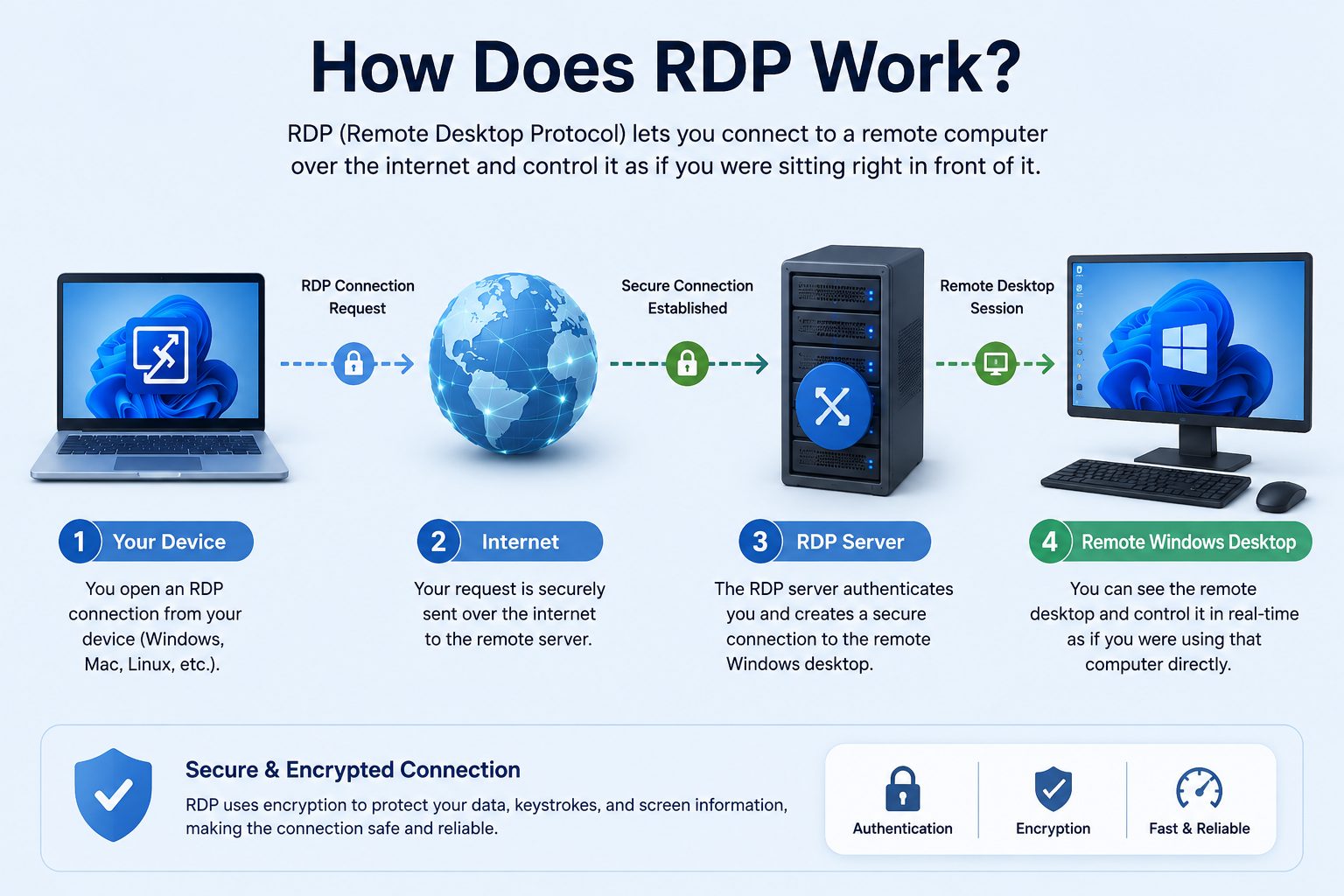
How RDP works from a device through the internet to an RDP server

How RDP connects your device to a remote Windows desktop through an RDP server

The basic idea behind RDP is relatively simple.

There are two main sides involved:

  1. The remote computer or RDP server
  2. The device you use to connect

The remote computer runs Windows and has Remote Desktop functionality enabled. Your local device runs an RDP client, such as Microsoft’s Remote Desktop application or another compatible client.

When you start a connection, the client communicates with the remote computer over a network.

A simplified process looks like this:

Your Device → Internet/Network → RDP Server → Windows Desktop

Once the connection is established, the remote computer processes your actions.

For example, when you move your mouse or type something, those inputs are sent to the remote machine. The remote machine processes the request and sends the resulting screen information back to your device.

This is why you can interact with a remote Windows desktop even though the actual computer may be located hundreds or thousands of kilometers away.

The quality of the experience depends on several factors, including the remote server’s hardware, network quality, server location, workload, and latency.

What Is an RDP Server?
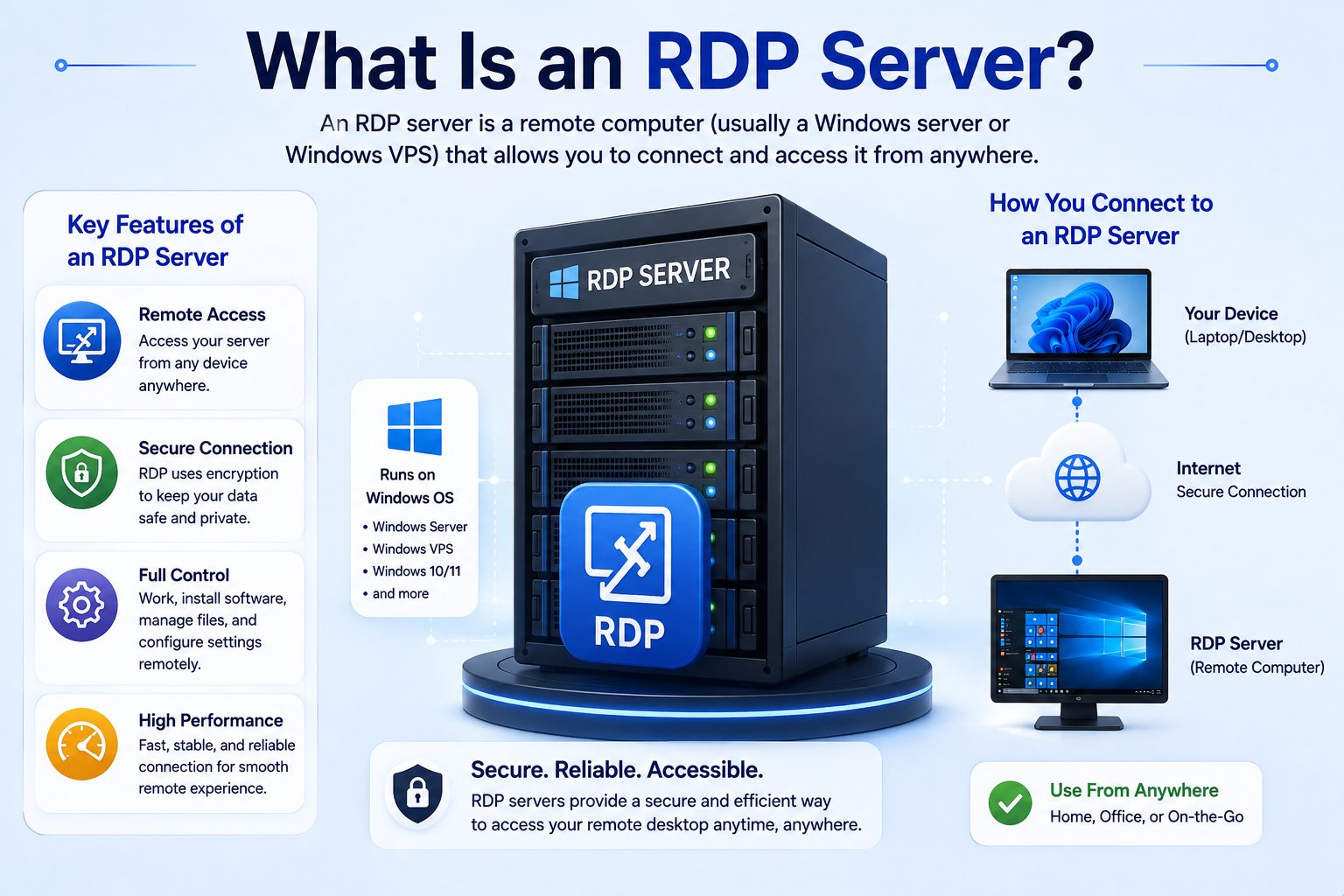
An RDP server is a Windows computer or server configured to accept Remote Desktop connections.

It may be:

  • A physical server
  • A virtual machine
  • A cloud server
  • A dedicated remote desktop machine
  • A hosted Windows environment

When you purchase an RDP plan from a hosting provider, you are generally paying for access to a remote Windows environment with certain allocated resources.

These resources can include:

  • CPU
  • RAM
  • Storage
  • Bandwidth
  • IP address
  • Windows operating system
  • Data center location

For example, a basic RDP plan might be suitable for browsing and office applications, while a higher-resource plan may be more appropriate for development or other demanding workloads.

This is why understanding your requirements before purchasing an RDP plan is important.

What Is the Difference Between RDP and Remote Desktop?

You may notice that people often use RDP and Remote Desktop almost interchangeably. Although they are closely related, they technically refer to different things.

RDP is the underlying communication protocol.

Remote Desktop is the feature or experience that allows you to access and control another computer remotely.

Microsoft’s Windows operating systems include Remote Desktop functionality, while applications such as Remote Desktop Connection use the RDP protocol to establish the connection.

So, in simple terms:

RDP = the technology/protocol

Remote Desktop = the remote access feature and experience

For everyday conversations, however, it is common to hear both terms used to describe the same general concept.
What Can You Do With RDP?

RDP can be useful for many different types of work.

Remote Work

Employees can use RDP to access a Windows desktop from home or another location. Instead of carrying a work computer everywhere, they can connect to a remote environment when necessary.

Depending on the setup, users can access business applications, files, and tools available on the remote machine.

Software Development

Developers may use Windows RDP environments for coding, testing, application management, and accessing development tools.

A remote Windows machine can also be useful when a developer needs access to software that requires Windows.

Business Operations

Businesses can use remote desktops to provide employees with centralized access to applications and resources.

This can simplify administration because applications and data can remain on managed systems rather than being installed separately on every employee’s personal device.

Server Management

System administrators can use RDP to remotely manage Windows servers.

Instead of physically visiting a data center, an administrator can log in remotely and perform tasks such as configuring applications, checking settings, or managing the operating system.

Remote Software Access

Sometimes users need software that is installed on another computer.

RDP allows them to access that computer remotely rather than installing the same software on every local device.

Education and Training

Students can use remote Windows environments for programming, software learning, and accessing applications that may not run well on their personal computers.


What Are the Benefits of Using RDP?

RDP offers several practical advantages, especially for users who need reliable access to a Windows environment from different locations.

1. Access Your Desktop From Anywhere

One of the biggest advantages is flexibility.

As long as you have a suitable device, network connection, and valid credentials, you can connect to your remote Windows environment from another location.

This can be particularly useful for remote workers and businesses.

2. Use More Powerful Hardware

A remote computer can have better hardware than your local laptop or desktop.

For example, instead of upgrading your personal computer, you may use a remote machine with more RAM, faster storage, or a more capable processor for certain workloads.

However, the actual experience still depends on the type of work and the resources available on the remote machine.

3. Centralized Work Environment

An RDP environment can provide a consistent desktop setup.

Applications, configurations, and files can remain on the remote computer, allowing users to work from different local devices without recreating the entire environment each time.

4. Convenient Remote Administration

RDP makes Windows server administration much more convenient.

Administrators can manage remote systems without physically being present at the server location.

5. Reduced Dependence on Local Hardware

Because much of the processing takes place on the remote computer, your local device does not always need to be extremely powerful.

A basic laptop may be enough for accessing a remote Windows environment, although the quality of your internet connection remains important.


Is RDP Secure?

Security is one of the most important considerations when using RDP.

A poorly configured RDP server can become a security risk, particularly if it is exposed directly to the internet with weak credentials or outdated software.

That does not mean RDP itself is inherently unsafe. It means that RDP should be configured and managed properly.

Some important security practices include:

Use Strong Passwords

Avoid simple passwords that can be easily guessed.

Use a strong, unique password for your remote account.

Keep Windows Updated

Operating system updates often include security fixes. Keeping the remote system updated can reduce exposure to known vulnerabilities.

Enable Multi-Factor Authentication Where Available

MFA adds another layer of protection beyond a username and password.

If your RDP environment or provider supports an appropriate MFA solution, consider enabling it.

Use Firewall Protection

A properly configured firewall can help control which connections are allowed to reach the remote system.

Limit Access

If possible, restrict remote access to trusted users, networks, or IP addresses rather than exposing the service unnecessarily.

Use Account Controls

Only provide users with the permissions they actually need.

An account that does not require administrator privileges should not automatically have them.

Monitor Login Activity

Regularly checking login activity can help identify unusual access attempts or other suspicious behavior.

Security should not be treated as something you think about only after an incident. It should be part of the initial RDP setup.


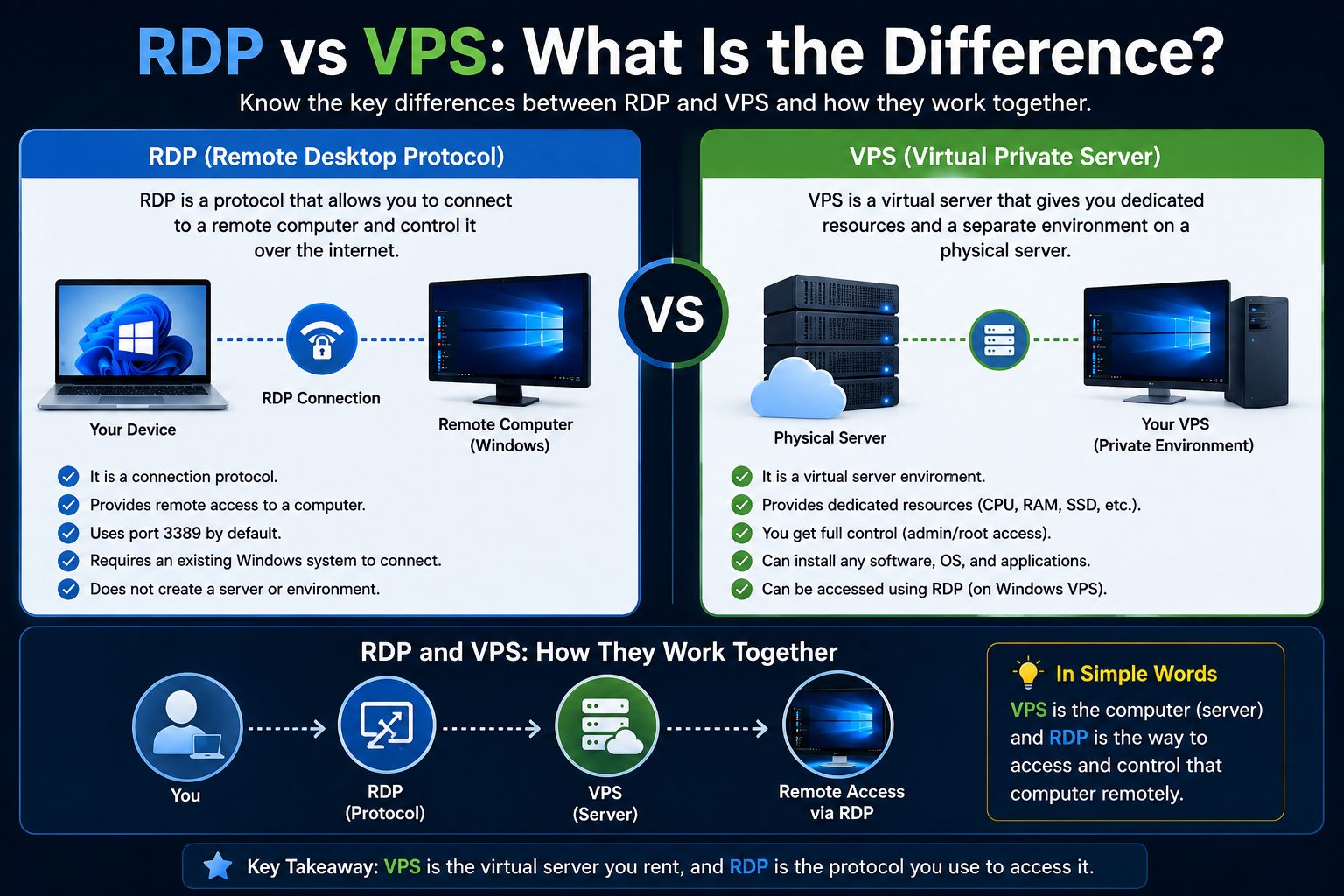
RDP vs VPS: What Is the Difference?

RDP and VPS are often compared because both can provide access to a remote server.

However, they are not exactly the same thing.

RDP is a remote access protocol.

VPS stands for Virtual Private Server and describes a type of virtualized hosting environment.

A VPS can run different operating systems and can be accessed using different methods. On a Windows VPS, RDP is commonly used as the remote access method.

This means that the two concepts can overlap.

For example:

Windows VPS + RDP = a Windows virtual server that you access remotely using RDP.

A VPS is generally more focused on server resources and hosting flexibility, while an RDP service is often marketed around convenient access to a remote Windows desktop.

The right choice depends on what you need to do.

If you simply need a Windows desktop environment for remote access, an RDP-focused service may be convenient.

If you need greater server-level control and hosting flexibility, a VPS may be more appropriate.


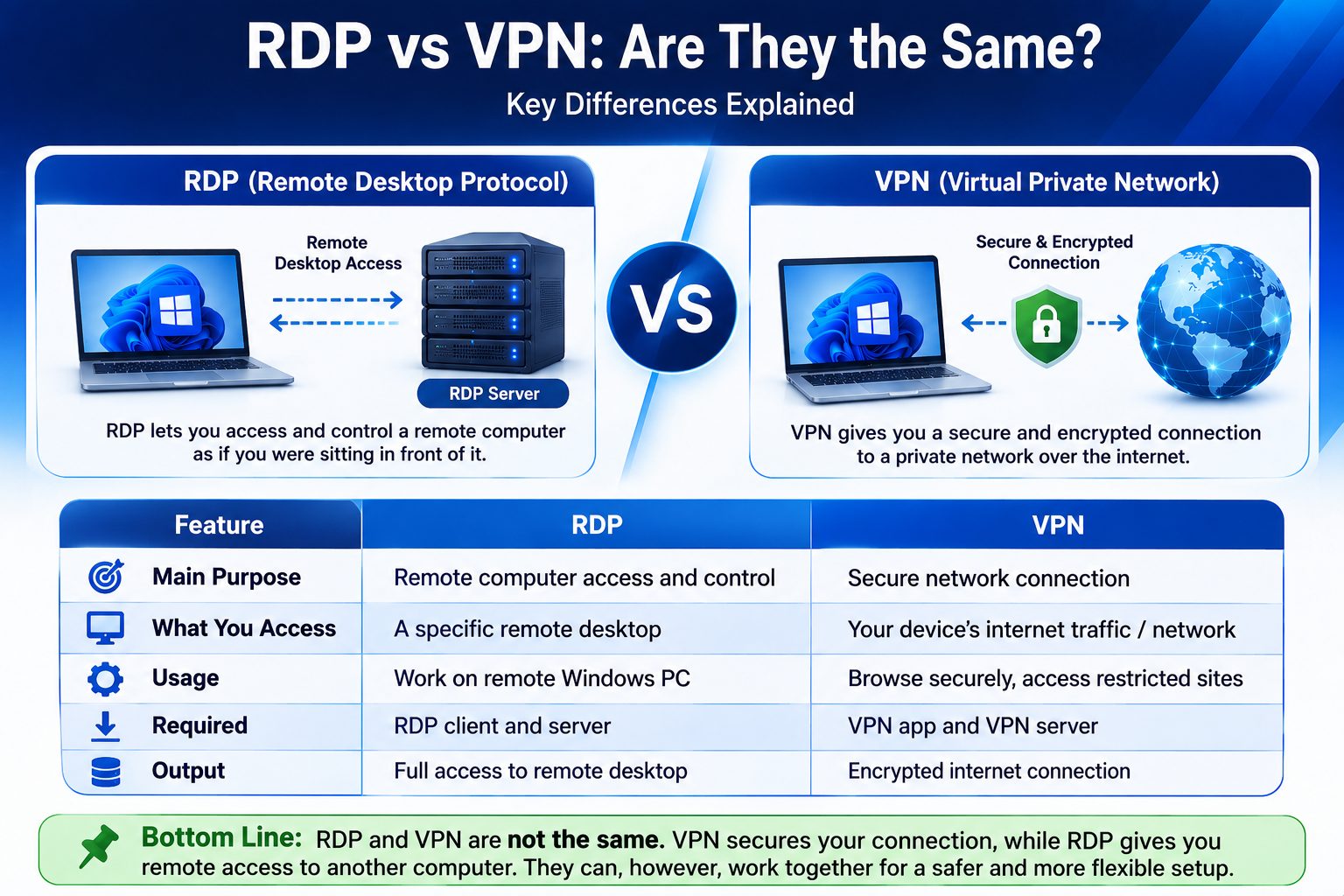
RDP vs VPN: Are They the Same?


No. RDP and VPN are different technologies.

A VPN, or Virtual Private Network, creates a secure network connection between your device and another network or VPN endpoint.

RDP, on the other hand, allows you to remotely control a Windows computer.

Think of it this way:

VPN = secure connection to a network

RDP = remote access to a computer

They can also be used together.

For example, an organization might require employees to connect to a company VPN first and then use RDP to access an internal Windows computer.

Using a VPN can be one way to reduce direct exposure of RDP services to the public internet, depending on the organization’s network design.


How Much Does RDP Cost?

There is no single price for RDP because plans vary significantly between providers.

The cost can depend on:

  • CPU resources
  • RAM
  • Storage type
  • Storage capacity
  • Bandwidth
  • Server location
  • Windows licensing
  • Dedicated or shared resources
  • Backup options
  • Support level

A basic RDP environment designed for light tasks will generally require fewer resources than a machine intended for development or demanding business applications.

Instead of choosing the cheapest plan available, consider what you actually need.

For example, paying for 32 GB of RAM when your workload only requires a small amount may not provide much practical benefit. On the other hand, choosing a plan with too little RAM or CPU power can result in poor performance.

The goal is to find the right balance between resources, performance, and price.


Shared RDP vs Dedicated RDP

RDP services may offer shared or dedicated resources.

Shared RDP

With a shared environment, certain resources are used by multiple users.

Advantages:

  • Lower cost
  • Suitable for basic workloads
  • Good option for beginners

Potential disadvantages:

  • Performance can vary
  • Fewer customization options
  • Resources may be limited

Dedicated RDP

A dedicated RDP environment provides resources allocated specifically to one customer.

Advantages:

  • More consistent performance
  • Greater control
  • Better suited to demanding workloads
  • More predictable resource availability

Potential disadvantage:

  • Higher cost

The best option depends on your workload rather than simply choosing the more expensive plan.


What Should You Look for in an RDP Plan?

If you decide that RDP is suitable for you, compare providers and plans carefully.

Hardware

Check the actual CPU, RAM, and storage specifications instead of relying only on phrases such as “high performance.”

Storage

NVMe storage can provide faster read and write performance than traditional SATA-based SSD storage, which can be useful for workloads that frequently access data.

Server Location

The physical location of the remote server can affect latency.

Choosing a server location closer to you or your users can often provide a more responsive experience.

Network Quality

A fast and stable network connection is important for remote desktop use.

Even a powerful server can feel slow if the network connection has high latency or frequent interruptions.

Security

Look for appropriate firewall protection, regular updates, secure authentication options, monitoring, and other security measures.

Support

Responsive technical support can be valuable when you encounter connection problems or server-related issues.

Upgrade Options

Your requirements may change over time.

A provider that allows you to increase CPU, RAM, storage, or bandwidth can make it easier to scale your environment instead of migrating to a completely different service.


Common RDP Problems Beginners May Experience

Although RDP can be convenient, beginners may occasionally encounter problems.

Slow RDP Performance

A slow connection can be caused by high latency, limited server resources, network congestion, or a demanding workload.

Frequent Disconnections

Unstable internet connections, server problems, or configuration issues can cause unexpected disconnects.

Authentication Errors

Incorrect usernames, passwords, account permissions, or security policies can prevent successful login.

Black Screen or Display Problems

Display issues can sometimes occur because of connection settings, graphics configuration, or problems on the remote Windows environment.

High Latency

If the server is geographically far away, your connection may feel less responsive.

This is why server location should be considered before purchasing an RDP plan.


Who Should Use RDP?

RDP can be useful for many different users.

Businesses

Companies can use remote Windows environments for employees, administration, and centralized access to applications.

Freelancers

Freelancers who work across multiple locations can access a consistent Windows environment without carrying the same computer everywhere.

Developers

Developers may use remote Windows machines for testing, development, and accessing Windows-specific tools.

IT Professionals

System administrators can manage Windows systems remotely instead of visiting physical servers.

Students

Students can use remote environments for programming, learning, and accessing software that requires Windows.

Remote Workers

Employees can connect to work environments from home or while traveling, depending on their organization’s setup and security policies.


Is RDP Right for You?

RDP can be a good solution if you need remote access to a Windows computer and want the flexibility to work from different locations.

It can be especially useful when:

  • You need access to Windows remotely.
  • You want a centralized desktop environment.
  • Your local device has limited hardware.
  • You need to manage a Windows server remotely.
  • You work across multiple locations.
  • You need access to Windows-specific software.

However, RDP is not automatically the best solution for every situation.

If you need website hosting, advanced server configuration, or a flexible development environment, a VPS or another hosting solution may be more appropriate.

The key is to choose the technology based on the actual job you need it to perform.


Frequently Asked Questions (FAQs)

What does RDP stand for?

RDP stands for Remote Desktop Protocol. It is a Microsoft-developed protocol used to connect to and interact with remote computers.

Is RDP the same as a VPS?

No. RDP is a remote access protocol, while a VPS is a virtual server environment. A Windows VPS can use RDP as one method of remote access.

Can I use RDP from a phone?

Yes. Compatible Remote Desktop applications are available for mobile devices, allowing users to connect to supported remote Windows systems.

Does RDP require internet access?

For accessing an RDP server over the internet, yes, a network connection is required. RDP can also be used within private networks.

Is RDP safe?

RDP can be used securely when it is properly configured and protected. Strong authentication, updates, firewall rules, access restrictions, and monitoring are important security measures.

Does RDP work only on Windows?

RDP is primarily associated with Windows remote desktop environments, but RDP client applications are available for other platforms, including macOS, Linux, Android, and iOS.

How much RAM do I need for RDP?

It depends on your workload. Basic office tasks may require fewer resources, while development, multitasking, and resource-intensive applications require more RAM.

Can I upgrade an RDP plan later?

Many providers offer upgrades to resources such as CPU, RAM, storage, or bandwidth. However, the available upgrade options depend on the provider and plan.


Conclusion

RDP is one of the simplest ways to access a Windows computer remotely. Instead of being physically present at the machine, you can connect to it from another device and interact with its desktop, applications, and files over a network.

Understanding what RDP is and how it works makes it much easier to decide whether you actually need an RDP service.

For beginners, the most important things to remember are simple: RDP is a remote access protocol, an RDP server is the computer you connect to, and the quality of your experience depends on the server’s resources, network connection, location, and configuration.

If you are planning to purchase an RDP service, don’t choose a plan based only on price. Compare hardware, storage, network quality, server location, security, support, and upgrade options. A little research before buying can help you avoid performance and reliability problems later.

Whether you’re a remote worker, freelancer, developer, business user, student, or IT professional, RDP can provide a convenient way to access a Windows environment from almost anywhere.

Once you understand how it works, choosing the right RDP solution becomes much less complicated.

Start Trading 24/7 Today

Get a server configured and ready for MT4 in under 60 seconds.

$4.99 / month